
Category: ERP Business Software
InOrder Enterprise Management Software Version 9.9 is a PA-DSS Validated Payment Application
We are proud to announce that InOrder version 9.9 has been successfully validated according to Payment Card Industry Data Security Standards (PCI-DSS) Payment Application Data Security Standard (PA-DSS) v2.0, and may be used by merchants who are PCI-DSS compliant.
The PCI Security Standards require merchants and service providers that store, process or transmit customer payment card data to adhere to information security controls and processes that ensure data protection.
InOrder has been successfully revalidated annually since it was originally certified in 2012. To achieve PA-DSS validation, a report documenting software changes since the previous validation was provided to Trustwave, a PA-DSS Qualified Security Assessor (QSA) who audited compliance of the software, and submitted the report with the InOrder PA-DSS Implementation Guide to the PCI Security Standards Council. These reports are also available for our clients and their PCI-QSAs.
Trustwave is a security company that provides services and solutions that include security for compliance and risk, SpiderLabs, and managed security, as well as network, database, and application security services and products. For more information about Trustwave, please visit their website.
For more information about PCI-DSS and PA-DSS, please visit the PCI Security Standards Council website.


InOrder Packing Verification Provides Heads Down, Hands Free Data Entry
With the InOrder Packing Verification Enhancement, your warehouse personnel can scan and pack items to record and verify the contents of individual shipments. As items are scanned, InOrder compares what was packed with what was ordered and allocated.
InOrder reports to the packer with distinct audible signals throughout the process. This speeds the verification process by not requiring the packer to constantly view the results on the screen. When the order is complete, the shipment is accepted.
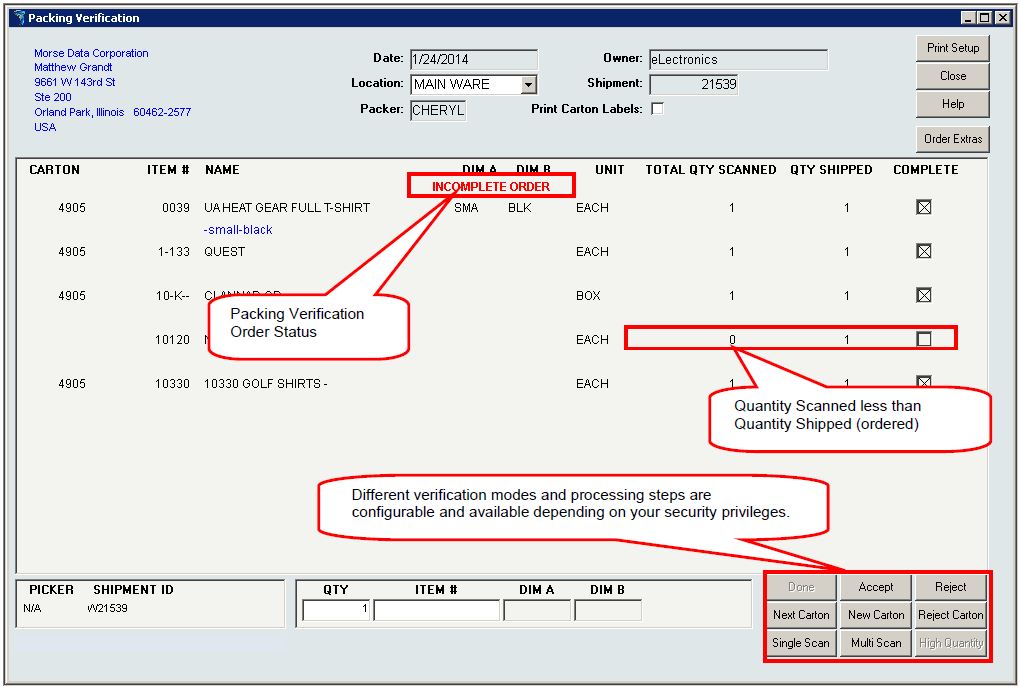 Packing is at the shipment level and recording is at the order level. InOrder can check for unprinted / ready to print orders that are shipping to the same customer as the shipment currently being packed.
Picker and packer initials are recorded, along with carton details and shipment summary.
 The InOrder Packing Verification provides three different packing verification methods:
- Single Scan – Each unit in the shipment is individually scanned. This method is used when line item quantities are typically low enough to scan each unit.
- Multi Scan – This method is used when line items often have higher quantities, so the process is streamlined for keying in the quantity when a line item has more than one unit to ship.
- High Quantity – This method allows quicker packing verification when the quantities are unusually large and difficult to count during packing. Each SKU is scanned once, regardless of quantity to be packed in a single carton.
The Packer Analysis Report provides at-a-glance analysis of packer productivity.
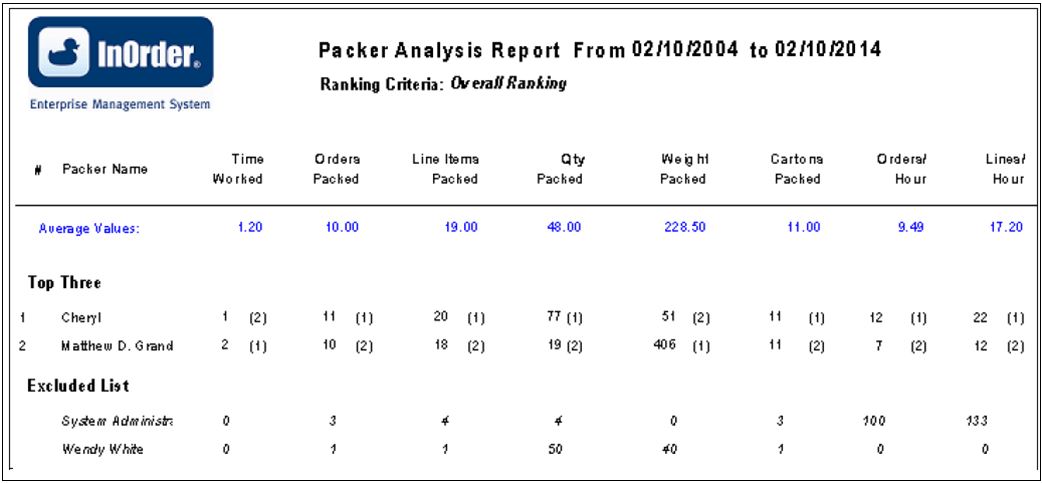 When you pack your shipments with InOrder, you can assemble all available items for the shipment at the packing station, use picking forms or produce separate packing slips, pack cartons for EDI orders, and track lot or serial numbers. You can even control if a shipment can be posted without packing verification.
For more information about the InOrder Packing Verification Enhancement, contact sales@morsedata.com.
Use Order Fill Rate to Measure Customer Service
The F. Curtis Barry & Company, a consulting company that provides solutions for multichannel operations and fulfillment, recommends that multichannel companies use Initial Order Fill Rate (IOFR) to measure customer service and inventory availability by order.
We agree. Both of these metrics are provided on InOrder’s Order Statistics Report. This data shows where you stand in regards to providing what customers expect – that inventory is available when ordered, and orders are shipped in a timely manner.
Initial fill rates are shown for orders within a range of weeks that you specify, along with the average number of hours it takes to fill those orders.
 For the complete article by F. Curtis Barry & Company, click here.
Survey Shows Customers Want Relevant Offers
Aimia Institute surveyed over 10,000 people about communications from brands. Over half of the consumers surveyed were annoyed by too many irrelevant messages. They avoided the brands sending those irrelevant messages and simply deleted the messages without reading them, or after reading only the titles.
As the Aimia Infographic shows, 66% consumers unfollow those brands on social media, 70% close their accounts with them, and 54% delete apps as a direct result of poorly targeted communications.
However, 56% of those surveyed still share their personal information for relevant offers. That means they want to hear from you! However, the magic word is “relevant.” If a customer gives you his or her Email address, he or she is waiting to hear from you, and you have a golden opportunity to communicate your message. Would you waste that opportunity on something that doesn’t apply to that customer?
InOrder can help you send only relevant information to your customers without over-sending by letting them opt-in and specify a maximum frequency to receive Emails from you. When they can make these decisions, they know that when they get a message from you, you’re telling them about deals they’re interested in, and they know they’re getting information they requested.
Using InOrder’s Email Marketing Enhancement, you control which Email types are listed for the customer to view, and you define the choices they have to subscribe to each Email type. Web customers can also control the format for their Email from your website. They can elect to receive either text or HTML format.
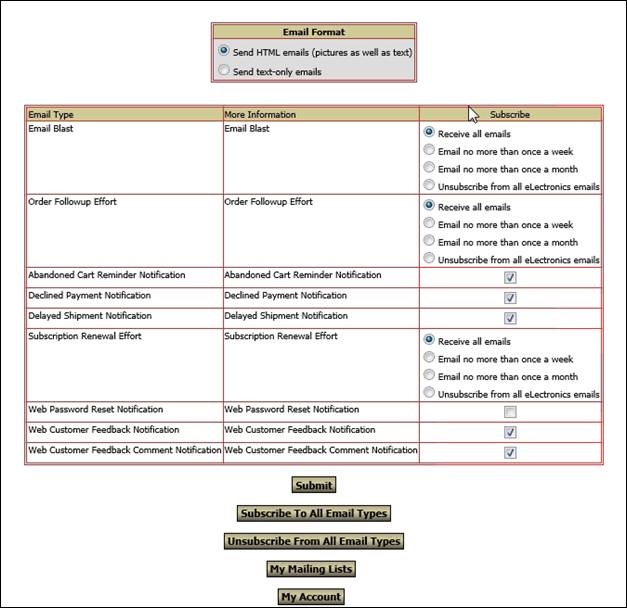 All the data on this screen is configurable based on what choices you want to offer your web customers.
For more information on how the InOrder Email Marketing Enhancement can improve your Email deliverability, contact Morse Data Corporation today.
InOrder WMS Guides Warehouse Personnel with Receiving
The InOrder RF Receiving functionality is useful when you’re expecting a purchase order to be filled, or when a surprise delivery is made to your dock. After purchase orders are created and printed, they are immediately available for RF receiving. When material is delivered, any RF user (with the appropriate user permissions) may enter or lookup the purchase order with the RF device and begin the receiving process. Multiple RF users may receive items for the same purchase order, which is useful for large purchase orders. RF users may leave their transaction while other RF users continue to receive items on the purchase order, or the user who started the transaction may pause it.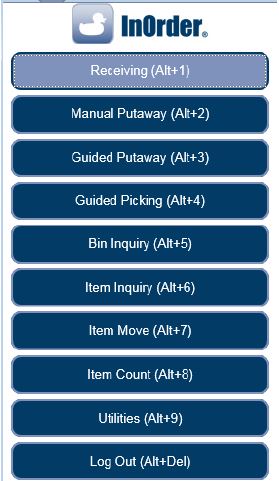 The RF user is guided through the receiving process to first select or lookup a purchase order. The RF User then selects a receiving bin location. Buttons for common receiving bins and hold codes may be configured to represent your specific bins and codes.
 If there are existing, open receipt transactions for the same purchase order (these may be receipt transactions that were paused by the current user or a receipt transaction started by another RF user for a team receiving scenario), the InOrder RF user chooses whether to receive on an existing receipt transaction or start a new receipt transaction.
The receiving section lists open purchase order line items. This section is useful for receiving small purchase orders (few line items). The open PO line items are presented and may be received one at a time via a button click and confirmation.
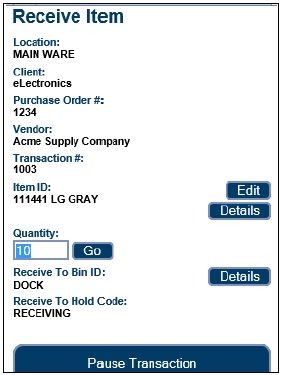 If an item is damaged, a button directs the RF user to a new page to receive the PO line item as damaged.
Options are also provided to manually receive the purchase order. This option is useful when receiving very large purchase orders with many line items. The item to receive is scanned and the quantity is entered.
A “Receive All” option automatically receives all open line items / quantities for the purchase order. The “View Received Items” button displays a list of line items received for the current purchase order.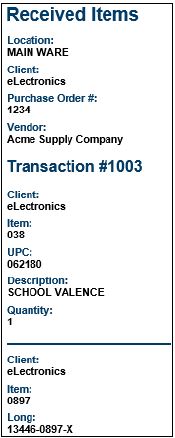 Check out these other great InOrder WMS RF features:
InOrder ERP Quick Tip – Find all Royalty Contracts with the Same Item
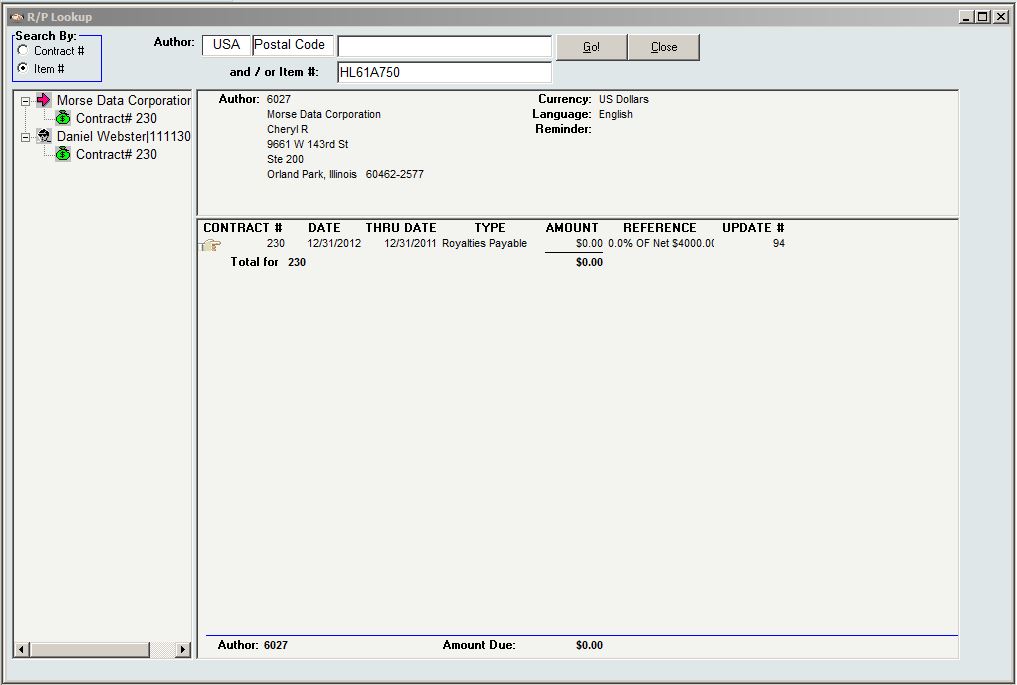
When you need to know which royalty contracts have a specific item, simply search Royalty Lookup.
- Click Item # in the Search By area.
- Enter the Item #.
- Click Go.
How Your Customer Service Reps Can Help Grow Your Business with InOrder ERP
Does your ERP system provide your customer service reps with the tools they need to give your customers first-rate service and improve your bottom line? Can your reps do this:
- Call customers; enter orders, returns, and quote prices.
- Check loyalty points, subscriptions, order history, and more.
- See what your shoppers looked at. View customers’ website visits, Email that was sent to them, product reviews and other feedback.
- Compose and send a fax, mail, or Email using one of the Microsoft .dot templates to provide a more personalized service experience.
- Offer multiple up, down, circular, diagonal, and cross-selling opportunities over the phone.
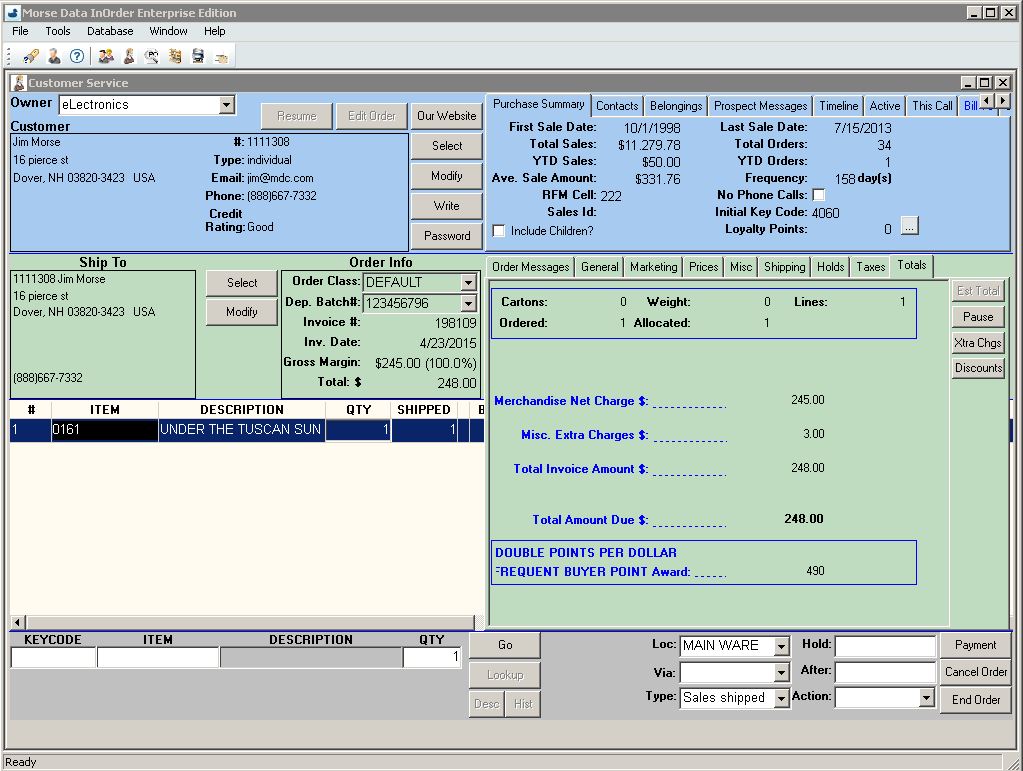
InOrder provides your customer service reps with the information they need to engage with all your customers. Loyalty points, which show your appreciation, are available at a glance in Customer Service during order entry. Want to know the customer’s birthday? Check a custom tab. Need to jog your memory about yesterday’s conversation? Check the Timeline. Shipping, taxes, payments, it’s all here, right at your fingertips.
New InOrder ERP Reports to Encourage Customers to Place Orders
Loyalty Programs give customers incentives to buy. They provide benefits for both your business and your customers by generating income and expressing appreciation to your customers. Companies from grocery stores to your local day spa use loyalty award programs to help keep customers coming back, increase sales, and improve customer engagement.
Two new reports, Loyalty Point Expiration Card and Loyalty Account Statements, have been added to the InOrder ERP Loyalty Program Enhancement.
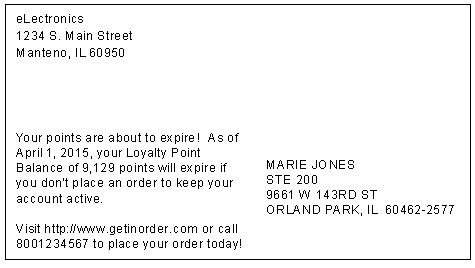
The Loyalty Point Expiration Card is used to generate postcards to send to customers when their loyalty points are nearing expiration.
 Loyalty Account Statements are generated with the customer’s loyalty point activity and balance.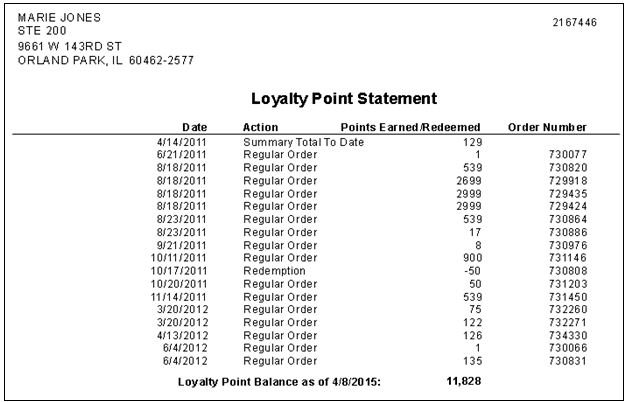
Contact us for more information about the InOrder Loyalty Program Enhancement.
InOrder ERP Quick Tip – Copy Details to Spreadsheet
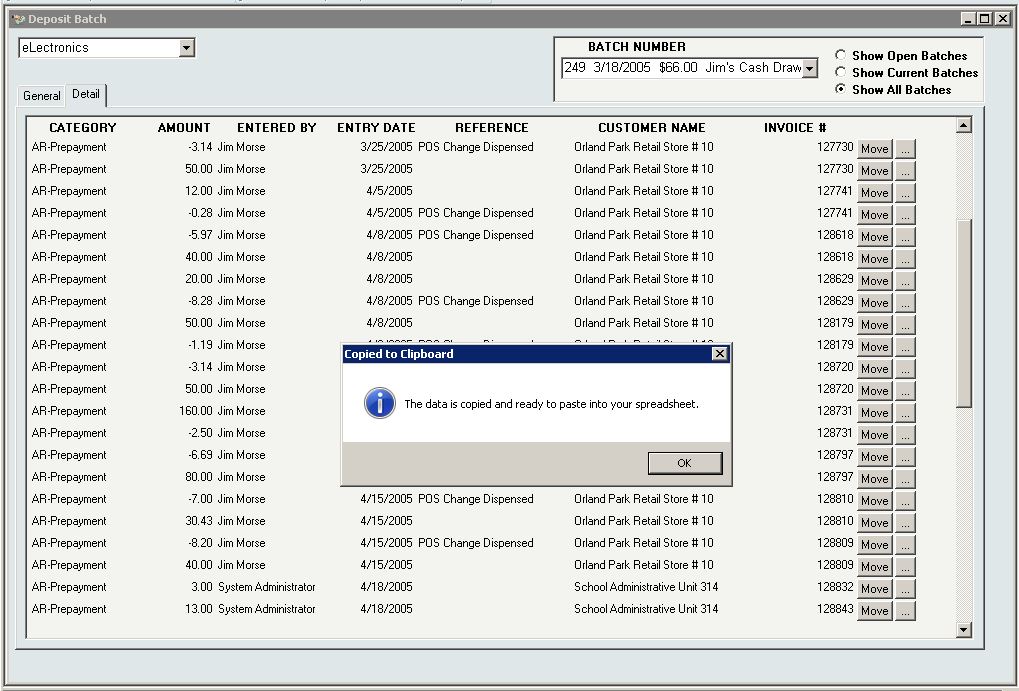
To allow users to quickly get deposit batch details to a spreadsheet, a copy/paste function is available on the Details tab of the [Deposit Batch] window. To copy the details, use the copy shortcut (CTRL+C) or click the Copy button on the InOrder toolbar.
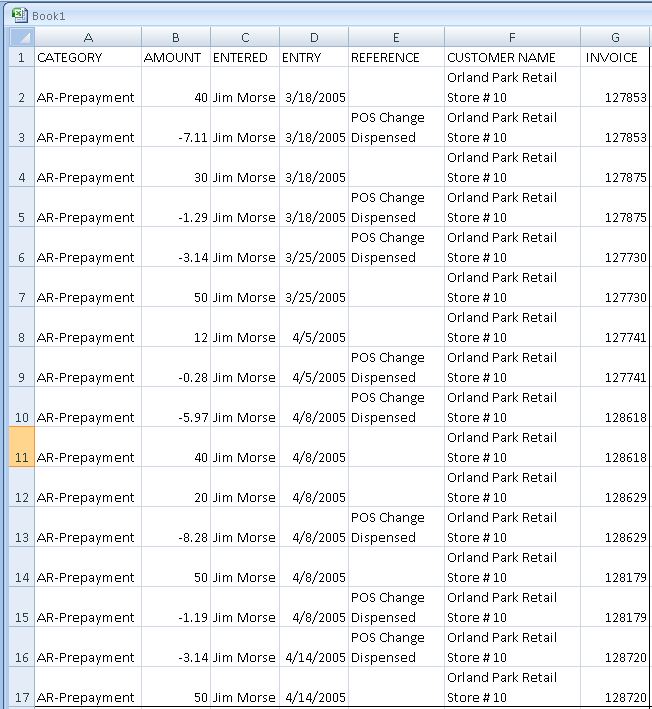
 Then paste (CTRL+V) the details into the spreadsheet.
Extend Your Store Credit to Point of Sale with InOrder ERP
Have you ever seen an old western movie with a customer shopping in the town store, and the customer gets to the register and says “Put it on my account?” They didn’t use debit cards or credit cards, but they were probably customers with good credit and a store credit account.
If you extend credit to your customers, you can bring a piece of that old world charm to your store with InOrder’s Point of Sale module. Simply use the “Pay Later” option, and the receipt prints. For returns, this feature sends the balance to A/R as a credit.
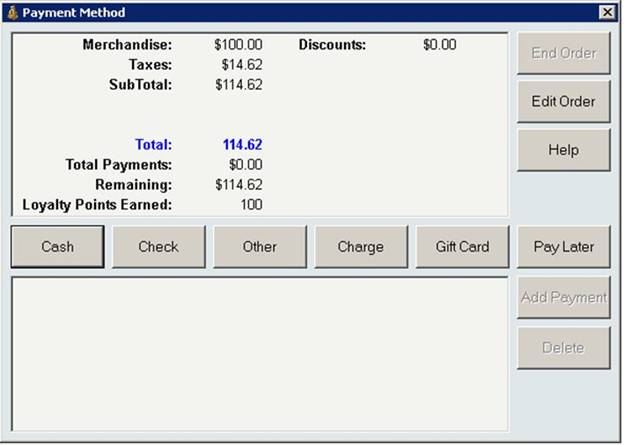 InOrder tracks the customer’s credit limit for you and only allows this for customers with good credit and enough unused amount on their credit limit to cover the order total. InOrder also makes sure your customer service rep has the appropriate privilege to access this feature. With this feature, you get old world charm and customer service with the latest ERP technology.