
InOrder ERP New Transfer All From Bin Feature Saves Time for Your Warehouse Personnel
When entering Transfer transactions, InOrder users may have already noticed the new Transfer All From Bin button on the Transactions window.
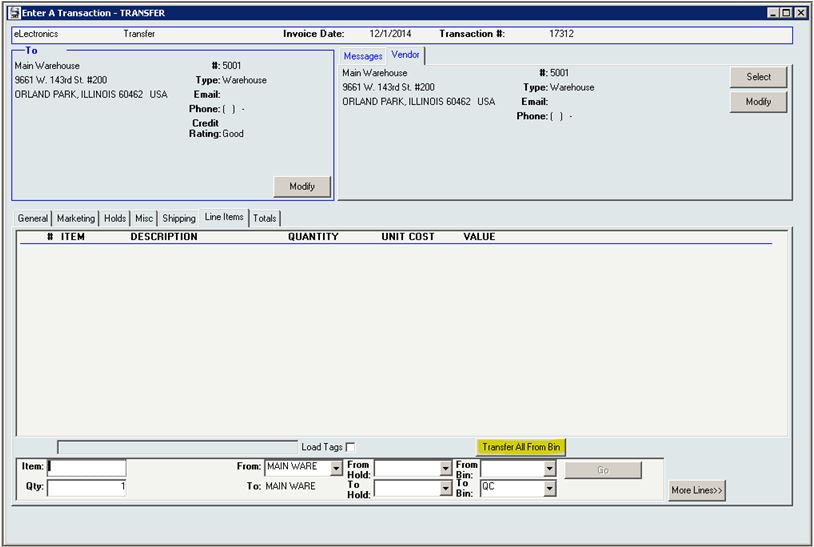 This new function generates an inventory transfer to move all contents from the specified bin to their final destination en masse (rather than individual bin moves) to facilitate guided putaway transactions.

This function is useful for companies that participate in exhibits or use other temporary storage, manually moving stock from one place to another. Now you can update InOrder with the new information with the push of a button.
If you take a trailer out on the road, use Reorder List and Local Reorder Points (as usual) to load the trailer. This loads from multiple bins in the main warehouse to the trailer. When you return to the warehouse and putaway your stock, use the Transfer All from Bin button to generate a transfer to move all stock from the trailer (single location / single bin) back into the warehouse. The Transfer All feature is also useful when you have many items in a bin designated as a “staging area” and you are ready to move them all to the destination. In this case, the staging area bin can be transferred to a remote storage location or exhibit/trailer.
This eliminates the need for individual bin moves and allows transfers across locations from one warehouse to another. You can also print your transaction and use it as a work order.
Previously, when stock was transferred, InOrder identified the From-Bins. Now, you can also select the bin from where you want to transfer your stock, which is also very useful.
How much time will this new feature save you?


Quick Tip – Copying Deposit Batch Details to a Spreadsheet
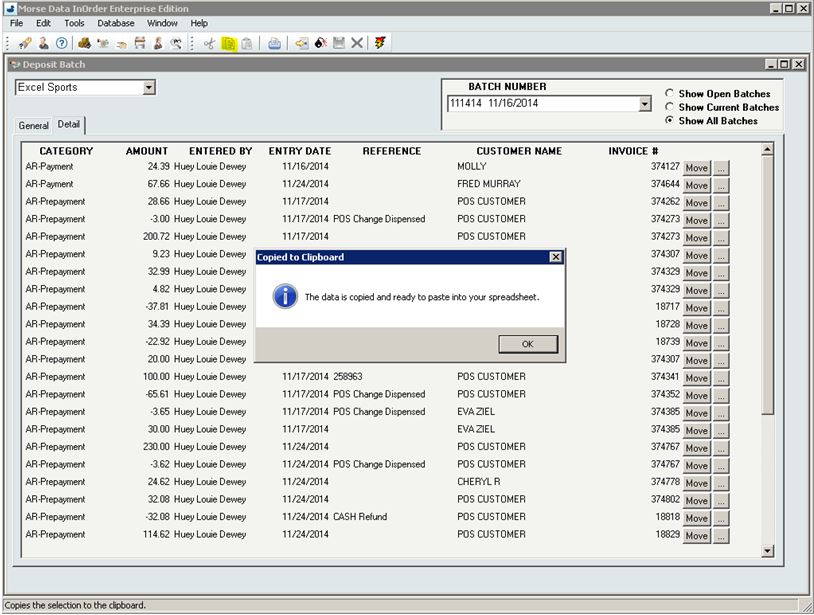
Do you need to quickly get deposit batch details to a spreadsheet? To copy the details, use the copy shortcut (Ctrl+C) or click the copy button on the InOrder toolbar.
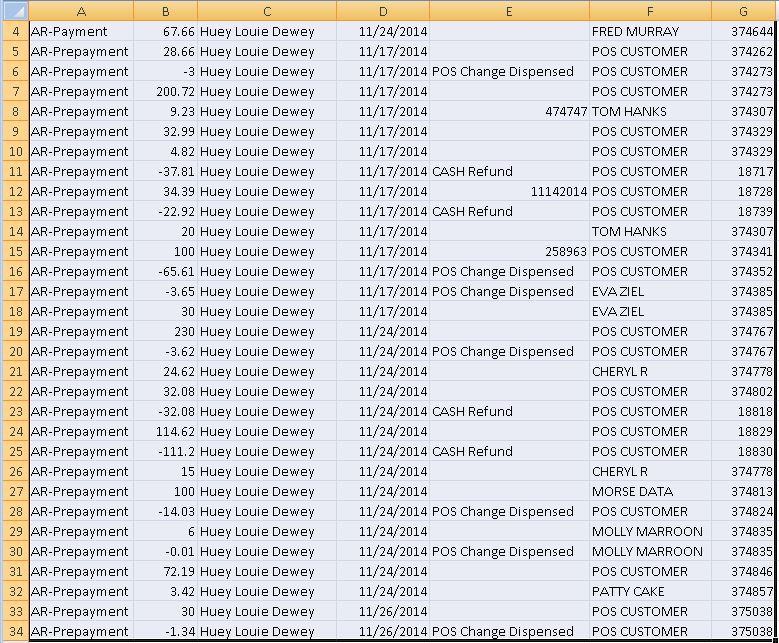
Then paste (CTRL+V) the details into your spreadsheet:
Study Shows Promotions Can Significantly Influence Purchases
A recent study made available by RetailMeNot.com explains the significant influence of promotions on purchasing decisions, sales, and loyalty. The study revealed that coupons, promotion codes, sales, and special offers were used by 49% of online purchases and 56% of in-store purchases.
Promotions have a big enough influence that consumers will use them to plan what they buy, where they will buy it, and when. They will personally seek out promotions from websites, mobile apps, printed coupons, emails you send them, and they will follow you on social media to get them. According to the study, 60% of one group of consumers surveyed said promotional offers were the reason they “like” retailers on Facebook.
The majority of consumers (91% of shoppers who used in-store promotions and 89% of shoppers who used online promotions) said that promotions were the reason they made their purchases. As shown by the study, promotions can increase the number of new customers and significantly increase the average order amount.
Interestingly, the study also reports that 39% of consumers abandon online shopping carts, 78% of them look for a promotion first, 68% of them used a promotion to return to the cart, and 24% have completed their purchases with a promotion. This presents yet another opportunity to encourage customers to complete their orders or add items to their carts.
68% of one group of consumers expressed loyalty to a brand offering online coupons or promotion codes and a willingness to tell a friend about them, and 50% even said they would be likely to buy at full price later.
This all ties in with what we previously said about promotions and how you can use them to generate income with your ERP system. And InOrder supports them all – Promotions, Email Marketing with Abandoned Cart Notifications, and even Loyalty Programs to say thank you.
Every Item Counts With InOrder
The Item Count function within InOrder may be used for period inventory counting, as well as continued inventory counting. For example, after daily warehouse activities (such as picking, packing, putaway, etc.) have been completed, the Warehouse Manager may generate a Daily Physical Count report to generate Inventory Tags for each RF user to complete that day.
InOrder RF allows RF personnel to complete item count tasks that have been assigned to them. The barcode of the bin is first scanned, then the barcode of the item is scanned and the quantity is entered.
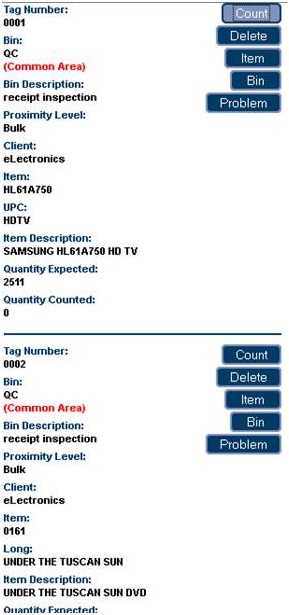 Item count tasks are generated via the Daily Physical Count report, which assigns inventory tags to RF users.
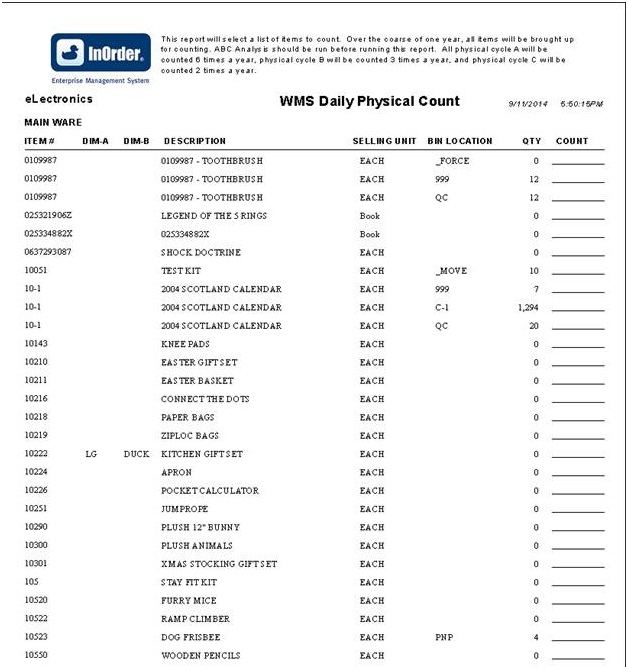 Assigned tags are displayed on the InOrder [Inventory Tags] window. Unassigned items may also be counted manually.
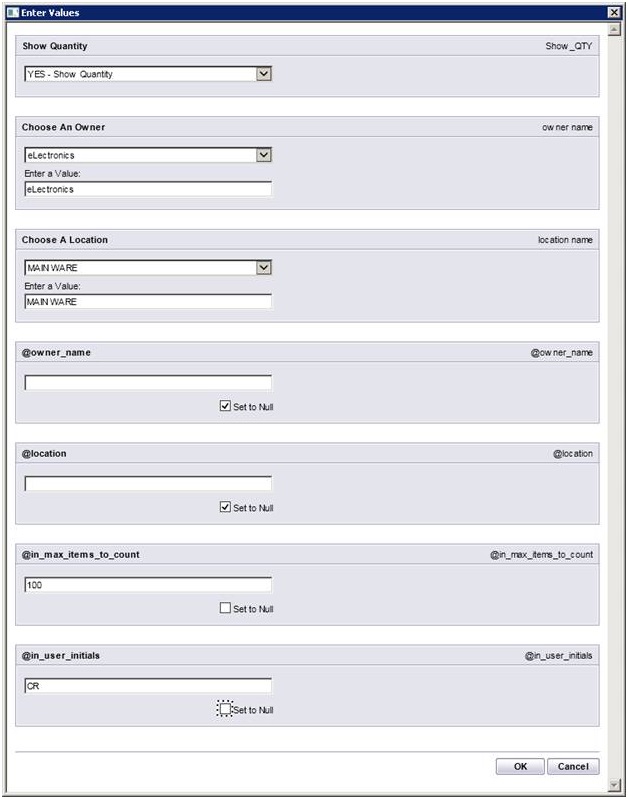
The Daily Physical Count report template supports the Item Count function. New parameters include the maximum number of items to count and the initials of the user who will be counting.
For more information about any of these features, call 888-667-7332
or send email to support@morsedata.com.
Rod’s Western Palace Relies on InOrder
Tony Marchese, Morse Data’s Vice President of Software Systems,
recently performed an annual software audit at Rod’s Western Palace.
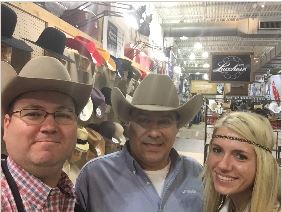
Rod’s Western Palace went live with InOrder in 2012. Rod’s relies on InOrder for inventory control, warehouse control, multi-channel order management including Point of Sale at several locations, Gift Cards, and InOrder’s PA-DSS certification to support their PCI DSS compliance.
Rod’s Western Palace, located in Columbus, Ohio, is a leading supplier of western apparel and tack. Rod’s boasts 20,000 square feet of retail space, which includes the main store and Rod’s Tack Barn. Even larger than their store is their website and catalog operation.

Rod’s Western Palace regularly attends trade shows and events, including the All American Quarter Horse Congress, which is known as “The largest single-breed horse show in the world.” Rod’s is there with InOrder’s Point of Sale to make sure attendees have access to all the western essentials they need during the show.
Rod’s is also the official sponsor of Miss Rodeo America for rodeo apparel and accessories, such as belts, hats, boots, and show clothing.
You can read more about Rods Western Palace and browse their great selection of western apparel and tack on their website.
InOrder Quick Tip – Searching by Check Number
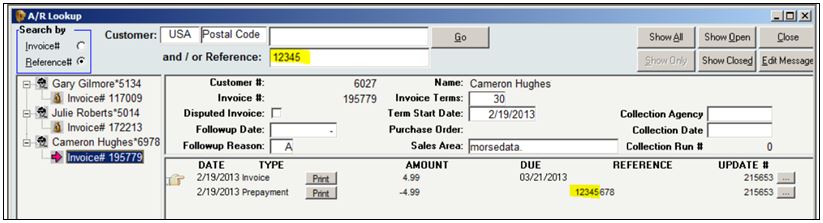
You may occasionally need to find an order by searching for a specific check number. If the check number was specified when the payment was entered, then finding that order is as easy as searching for the invoice. Here’s how:
- In A/R Lookup, select the Reference # option in the Search By box.
- Enter the check number in the Reference field.
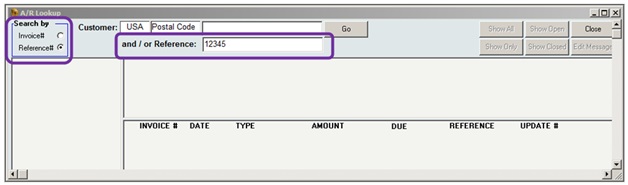
All invoices containing that check number are listed in the search results.
Customer Service – Helping Your Customers Helps Grow Your Business
Customers appreciate when customer service reps are helpful and make sure they don’t miss anything. It saves customers time, frustration, and shipping costs.
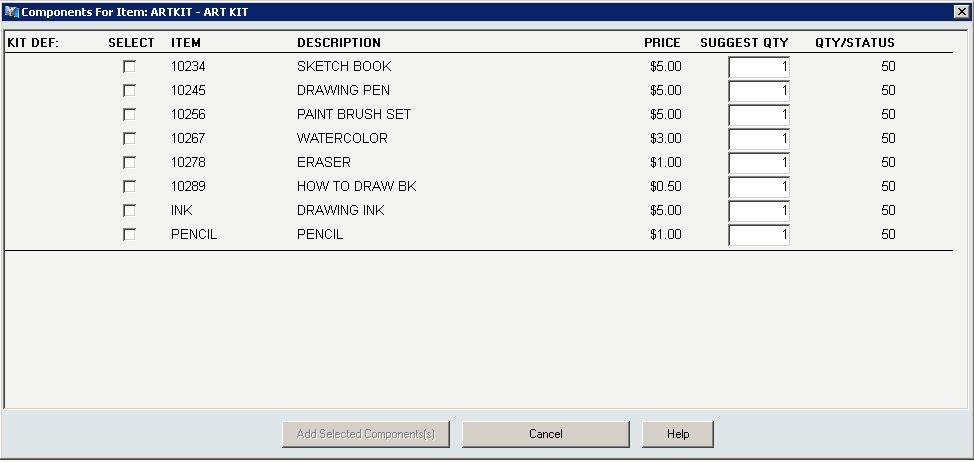
One way to help your customers get everything they need is to provide helpful followup after a kit is ordered. When a customer needs a refill or a replacement part for a kit that was ordered a year ago, the Customer Service Rep needs only the original kit number to see all the components available with the kit.
 Enter the item number. Before clicking the Go button to add the kit to the order, click the ellipsis button. This opens a list of all items in the kit to determine which part the customer needs.
 This window is also valuable for presenting a collection of items that may be only indirectly related so not sold as a conventional “kit.” For example, S’mores ingredients may include chocolate, crackers, and marshmallows. However, if a customer is buying these ingredients for a camping trip or a backyard pit fire, additional suggestions (such as firewood, roasting spikes, fire starting chips, and a CD with campfire music) may be very much appreciated. While you’re at it, you can even offer a variety of chocolate and marshmallows or sizes of firewood bundles to select, as shown in the next example.
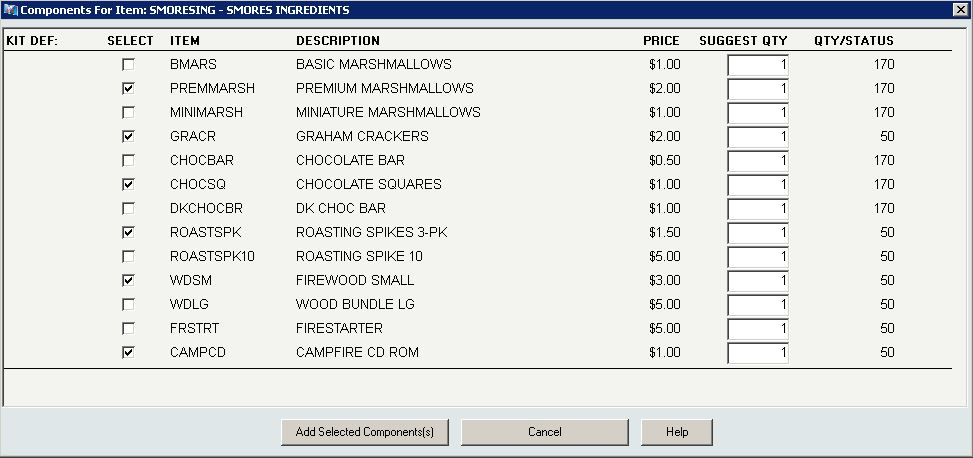 While customers select only the items needed for the occasion, your Customer Service Reps can make sure they don’t miss anything.
InOrder Tip – Email Settings for Client Receipt Confirmations
Because the [Email Formats] window is where receipt confirmations are set up, it may be mistaken for the place to also enter or remove client Email addresses for those receipts.
To send or discontinue receipt confirmations for a client, be sure to add or remove the client Email address in the Email Address field on the [Client Setup] window (Email Settings tab – General subtab).

Finding an Invoice Number with [Order Extras]
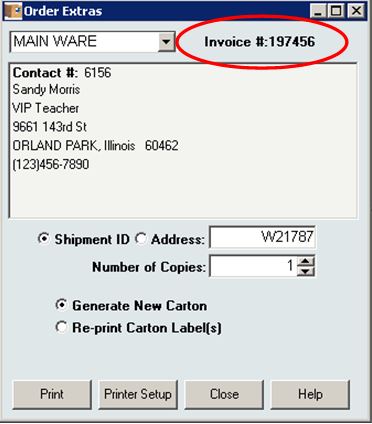
Do you have a carton number or warehouse shipment I.D. but not the invoice number? It’s easy to find with [Order Extras]. Here’s how:
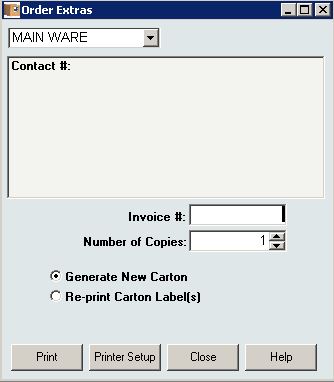 When you first open [Order Extras], a blank Invoice # field is available. Enter the carton or warehouse shipment I.D. in that Invoice # field and press Tab or Enter.
The Invoice number is displayed, along with the customer contact information.
InOrder ERP Guides Pickers Through the Warehouse with RF Picking
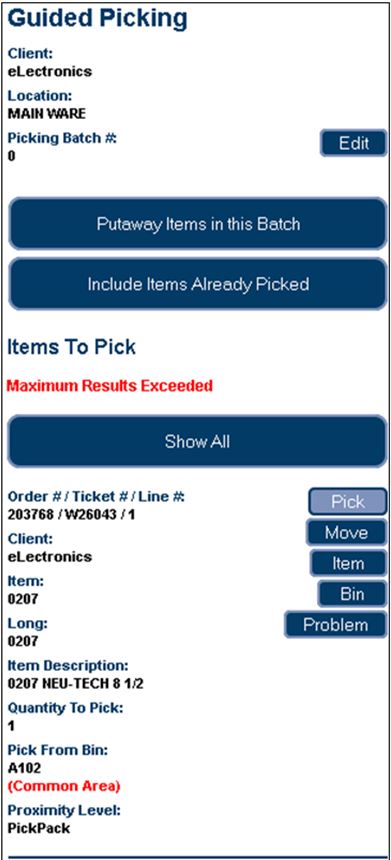
We know that InOrder’s RF capabilities are impressive, like the fact that it supports any internet-capable device. As always, we’re constantly making improvements, and InOrder RF is no exception. We added RF functionality for Guided Picking, Guided Putaway, and Item Counts. Here is an overview of the new Guided Picking.
To generate guided picking tasks, orders are entered and printed according to the normal order processing procedure. Then warehouse shipments are quickly and efficiently batched / assigned to pickers by a Warehouse Manager.
On the [Warehouse Traffic] window, the Assign Tickets tab has been updated to accommodate the new RF functions and assign the tickets to pickers to begin immediately. The assignment process starts a timer that evaluates how long a picker works on the assignment.
Currently, the warehouse manager scans one shipment I.D. at a time to assign them to pickers. Alternatively, a new picking batch number already assigned to the batch may be entered. Optionally, a picking batch number may be used to group / batch orders to pick or putaway together.
Using customized Crystal Report forms, different processes for this can be conceived. For example, cart picking, when your cart summary includes peel-off shipment I.D. labels for each cart slot, allowing you to forgo printing pick tickets.
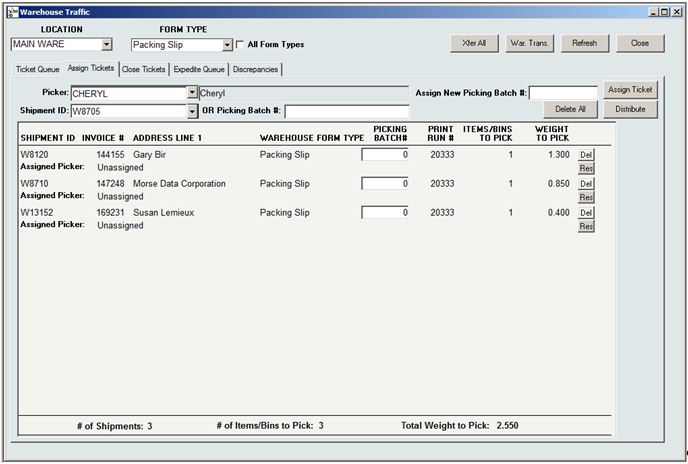 Tickets may also be assigned in bulk to several different pickers using the Distribute Tickets feature. This feature is useful for assigning putaway tasks, or for picking with a Crystal Report that prints shipment I.D. labels by picker after they are assigned.
 When RF transactions have been assigned / distributed, the RF personnel picks the batch by first scanning the barcode label of the bin from which an item is being picked, then the barcode label and quantity of the item. (One or more of these scans may be bypassed using security privileges.) Items are then Putaway to the packing area, where they may pack verified, if applicable.
For example, when you are picking an inventory transfer (e.g., using cart picking), you walk through the warehouse picking all the items in your batch. When you are done, you tell the system by putting the items away (e.g., a ‘pack’ bin for cart or batch picking).
 Watch for future articles for more great RF features. But if you can’t wait, just call us and we’ll tell you all about it!