InOrder’s RF Guided Putaway Saves Time with Alternate Bin Selection
InOrder’s Guided RF tasks control where inventory is put away and how it gets to the correct storage location in the most efficient way possible. What if your items do not always end up in the bin determined by the system? With another RF system, you might have to put the item in the location identified, and then use the system to again move the item to another location.
If your items do not always end up in the bin determined by the system, you could save a lot of time by selecting an alternate to-bin during guided putaway.
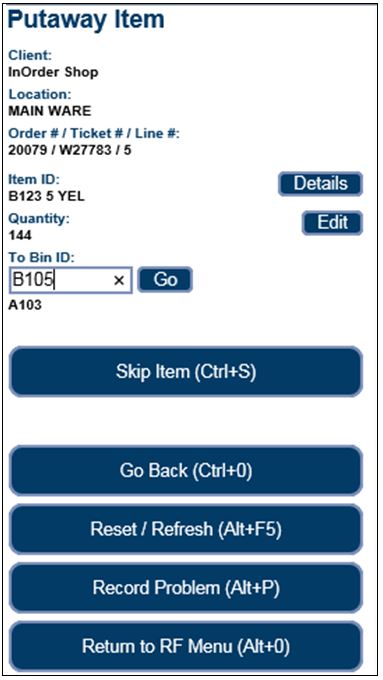 The alternate to-bin is confirmed with a Complete Putaway prompt.
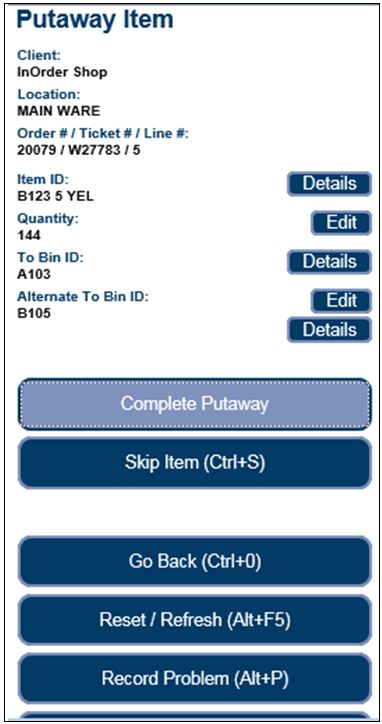 When an alternate to-bin is selected, the putaway quantity to the original bin is de-allocated, removed from the original bin, reallocated for the alternate to-bin, and the added to the alternate bin.
If there is no longer sufficient stock in the original putaway bin (e.g., the stock has been allocated from that bin for another order), an alternate putaway bin may not be selected. However, a partial quantity may be putaway to an alternate bin. Additionally, an alternate putaway bin with a different hold access code that the line item being putaway may not be selected. Overpick bins behave similarly.
For more information about the InOrder RF Module, contact us for a demo, or call us at 888-667-7332.


6 Reasons Why InOrder is Ideal for eCommerce
You already know that InOrder is a high-end enterprise management system with functions found in systems that cost thousands more. With real-time inventory and order tracking, a single database to keep all of your information in one place, InOrder also integrates with everything you need to manage your business.
Here are 6 reasons why InOrder is ideal for attracting new customers and keep them coming back to your online store.
1. Product Browsing Features
A search engine optimized design, allowing additional edge over the competition. InOrder supports mobile browsing (and shopping), graphics, dimensioned inventory, item personalization, and Facet Filtering. AddThis allows your web customers to share pages from your website on social media websites.
2. Product Pricing Features
Extended price breaking information, reflecting special prices and most discount scenarios, is shown as customers add inventory to the shopping cart. InOrder’s eCommerce module also supports volume discounts, wholesale ordering, and special offer-driven pricing and promotion line items. International shopping is also supported, allowing customers to view prices in their preferred currency.
3. Shopping Cart Features
InOrder’s eCommerce shopping cart provides flexible login for customers, including soft logins, which allow web customers to be remembered across shopping sessions, guest checkout, and pre-login requirement option based on owner.
Customer acquisition cookies are supported, as well as open order resume cookies with expiration timer to clean up abandoned carts.
You can keep your customers informed with shipping charge computations, estimated shipping, estimated number of days for delivery, and rate shopping. When real-time stock allocation is used, backorder notifications are presented as items are added to the shopping cart.
4. Checkout and Payment Features
Ship via and payment pages may be skipped to support one-click checkout. Customers may always return to add or edit information on these pages. InOrder’s eCommerce module supports many forms of payment, including:
- Gift cards and gift certificates
- PA-DSS credit card processing, including the re-use of saved credit cards
- PayPal
- Installment payments
- COD
- Saved payment methods
- Cash payments
- Intranet/inter-department orders by G/L account with budget tracking
- Purchase orders
- Credit memo application to new orders
Real-time address verification using calls to your InOrder Address Validation interface subscription enhancements, as well as tax computation interfaces, are supported.
5. Customer Account Features
InOrder eCommerce provides full support for multiple ship-to addresses, browsing history, address books that can be maintained by Customer Service Representatives, and support for multiple customers using the same Email address. Give your customers the best features with control over their own information. Here is a list of what they can do:
- Check gift card balances and loyalty point history
- Set Email preferences to improve deliverability
- Sign up for back-in-stock notification when an item is out of stock
- Check order history and real-time order status
- Repeat orders for seasonal gift reordering
- Manage their address books
- Set payment methods and preferred payment method
- Add feedback, ratings, product Q&A
- Set ordering preferences
- Request catalogs; sign up for mailing lists & interest groups
- List subscriptions, continuity series, standing orders, and memberships
- Maintain Wish Lists
6. Marketing Features
Marketing is crucial to the support and growth of your business, and there is a lot involved. From the way you display your products to measuring the success of your efforts, InOrder eCommerce has what you need.
- URL specification of owner/order class/click-through ad promotion key code
- Navigation bar with special promotions that are displayed based on inventory browse criteria and customer purchase history. Promotions continue randomly throughout the checkout process.
- Loyalty Programs and promotional shipping charges
- Support for the Simple Fade Slideshow plug-in.
- Multiple item relationships for additional cross-selling and up-selling opportunities
- Multiple carousel displays on home page for different types of cross sells
- Display and selection of related items, including:
- Items related to items in the cart
- Items related to the current item
- Items from the customer’s Wish List
- Items other customers bought
- Items related to previous purchases
- Items related to/replacing a discontinued item
- Items related to a discontinued hierarchy
- Integration with the InOrder Email Marketing Enhancement and the Email Communication Enhancement.
For more information about eCommerce with InOrder, contact sales@morsedata.com.
New InOrder ERP Reports to Encourage Customers to Place Orders
Loyalty Programs give customers incentives to buy. They provide benefits for both your business and your customers by generating income and expressing appreciation to your customers. Companies from grocery stores to your local day spa use loyalty award programs to help keep customers coming back, increase sales, and improve customer engagement.
Two new reports, Loyalty Point Expiration Card and Loyalty Account Statements, have been added to the InOrder ERP Loyalty Program Enhancement.
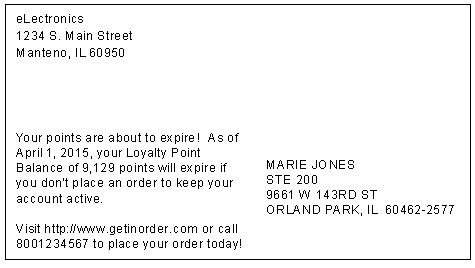
The Loyalty Point Expiration Card is used to generate postcards to send to customers when their loyalty points are nearing expiration.
 Loyalty Account Statements are generated with the customer’s loyalty point activity and balance.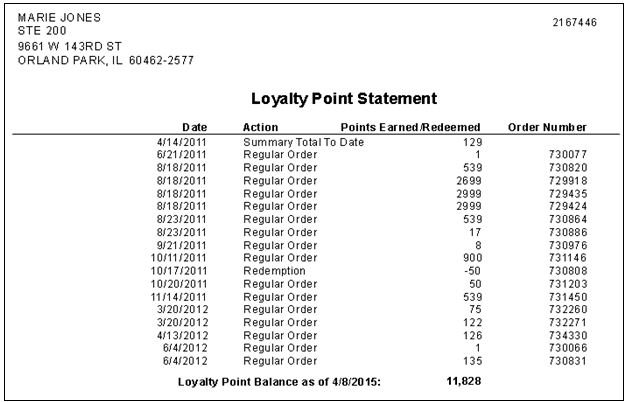
Contact us for more information about the InOrder Loyalty Program Enhancement.
Extend Your Store Credit to Point of Sale with InOrder ERP
Have you ever seen an old western movie with a customer shopping in the town store, and the customer gets to the register and says “Put it on my account?” They didn’t use debit cards or credit cards, but they were probably customers with good credit and a store credit account.
If you extend credit to your customers, you can bring a piece of that old world charm to your store with InOrder’s Point of Sale module. Simply use the “Pay Later” option, and the receipt prints. For returns, this feature sends the balance to A/R as a credit.
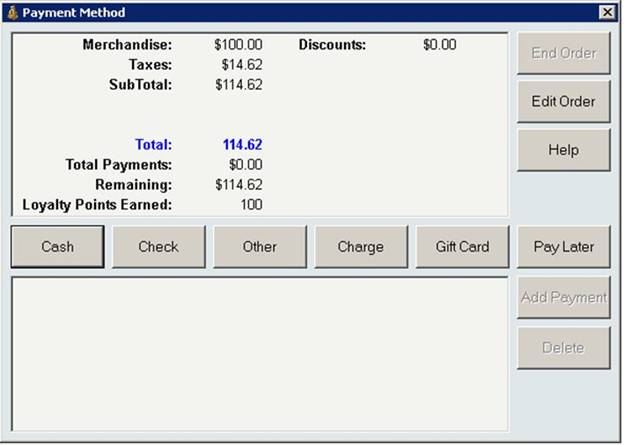 InOrder tracks the customer’s credit limit for you and only allows this for customers with good credit and enough unused amount on their credit limit to cover the order total. InOrder also makes sure your customer service rep has the appropriate privilege to access this feature. With this feature, you get old world charm and customer service with the latest ERP technology.
InOrder ERP Stock Drop Transfer Feature Allocates Stock From Nearby Locations
While you might expect ERP systems to backorder or cancel an out of stock item, InOrder can see stock available at a nearby location. If that stock can be brought to the warehouse in time to fill the line item, it is allocated to the order.
 To do this, InOrder generates an inventory transfer to transfer the stock from the remote location back to the warehouse from where the order shipment needs to ship. Personnel at the remote location print the “transfer out” order and pull the stock as soon as possible. The stock is transferred, and the transfer is posted.
Stock can be pulled from any designated facility that may have the stock on hand, such as a remote storage location, a point of sale store or merchandise exhibit, or even a consignment location. In some cases there is a risk that the stock is sold to a point of sale customer before it can be transferred. Therefore, InOrder keeps the order from printing in the ship-from warehouse until the transfer is posted to confirm the stock was retrieved.
Customer Service – Helping Your Customers Helps Grow Your Business
Customers appreciate when customer service reps are helpful and make sure they don’t miss anything. It saves customers time, frustration, and shipping costs.
One way to help your customers get everything they need is to provide helpful followup after a kit is ordered. When a customer needs a refill or a replacement part for a kit that was ordered a year ago, the Customer Service Rep needs only the original kit number to see all the components available with the kit.
 Enter the item number. Before clicking the Go button to add the kit to the order, click the ellipsis button. This opens a list of all items in the kit to determine which part the customer needs.
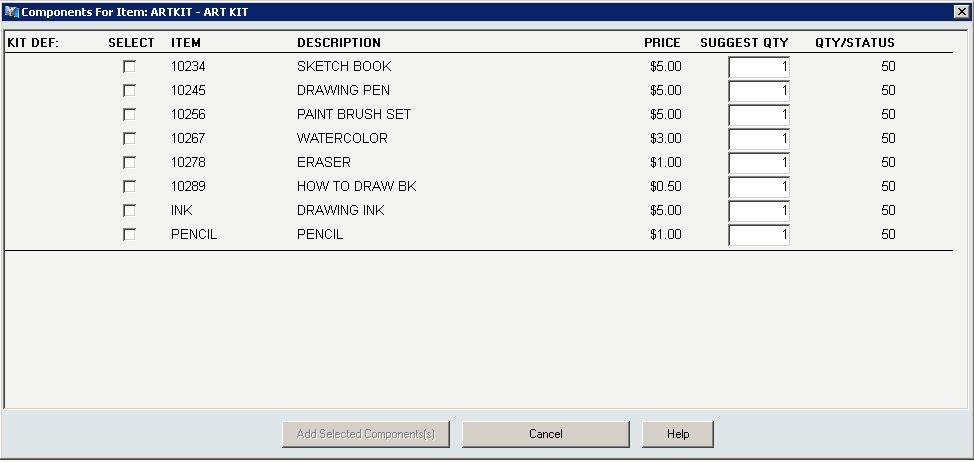 This window is also valuable for presenting a collection of items that may be only indirectly related so not sold as a conventional “kit.” For example, S’mores ingredients may include chocolate, crackers, and marshmallows. However, if a customer is buying these ingredients for a camping trip or a backyard pit fire, additional suggestions (such as firewood, roasting spikes, fire starting chips, and a CD with campfire music) may be very much appreciated. While you’re at it, you can even offer a variety of chocolate and marshmallows or sizes of firewood bundles to select, as shown in the next example.
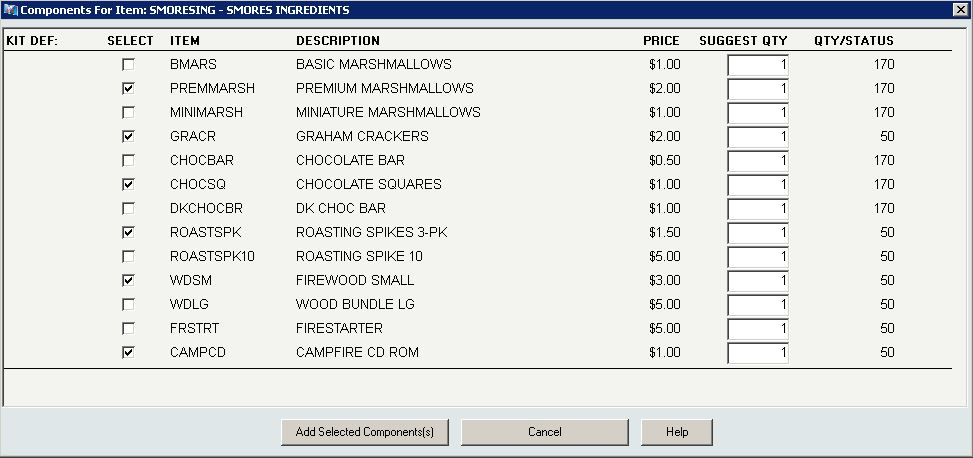 While customers select only the items needed for the occasion, your Customer Service Reps can make sure they don’t miss anything.
InOrder Tip – Email Settings for Client Receipt Confirmations
Because the [Email Formats] window is where receipt confirmations are set up, it may be mistaken for the place to also enter or remove client Email addresses for those receipts.
To send or discontinue receipt confirmations for a client, be sure to add or remove the client Email address in the Email Address field on the [Client Setup] window (Email Settings tab – General subtab).

InOrder ERP Guides Warehouse Personnel through the Warehouse with RF Guided Putaway
Warehouse Management, in part, means controlling where inventory is put away and how it gets to the correct storage location in the most efficient way possible. InOrder does it with precision and innovation using tried and true logic while keeping up with the latest technology.
Guided putaway tasks are generated by inventory transactions. An item being received may be put away directly using the inventory receipt transaction, by processing received inventory in the Receipt QC window to generate a put-away inventory transfer, or by manually entering an inventory transfer after the receipt.
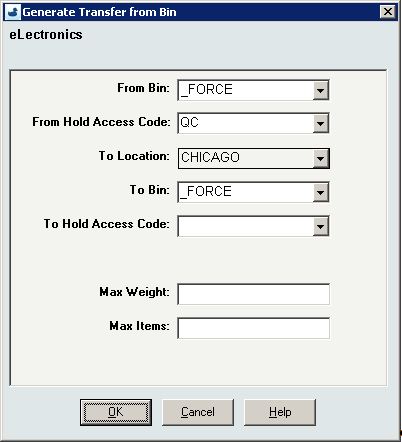
Inventory transfers may also be generated to move all contents of a selected warehouse bin, to their final destination, en masse (rather than individual bin moves).
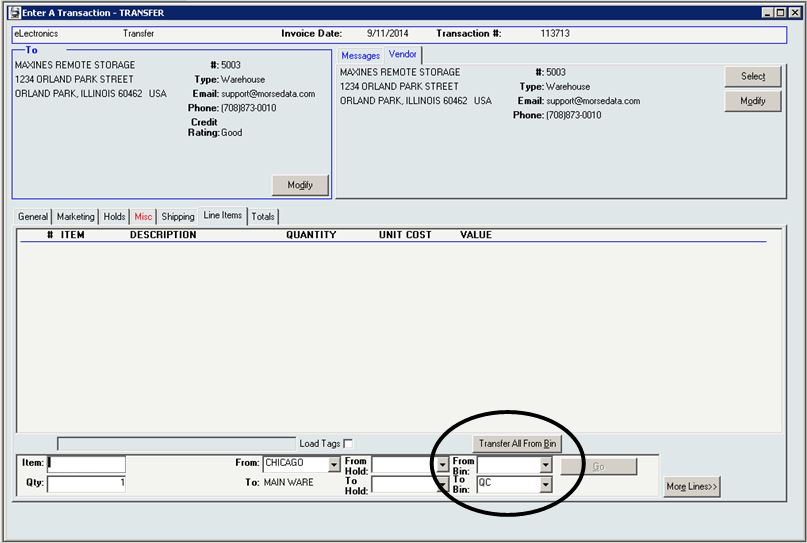
 The [Inventory Transaction] window’s line item entry section for inventory transfers provides convenient entry of both “From” and “To” Bins.
 As with Guided Picking, these tasks are also assigned by the warehouse manager.
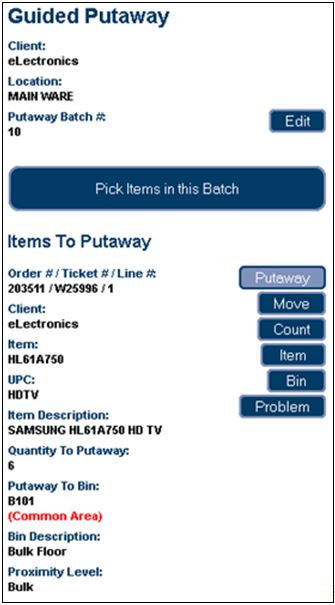
The Guided Putaway process includes scanning the item in the receiving area (picking), entering the quantity being putaway, and scanning the label of the putaway bin as the item is put away into the bin. One or more of these scans may be bypassed using security privileges.
The following options are available for RF Putaway:
- Pick and Putaway Items in Batch – This process directs the RF user to first pick all items in the batch, if applicable, then the RF user is directed to putaway the items.
- Pick Entire Batch – This option is available if your batch includes items being picked from a single bin location (such as the dock, for example). Then items may be putaway.
InOrder ERP Guides Pickers Through the Warehouse with RF Picking
We know that InOrder’s RF capabilities are impressive, like the fact that it supports any internet-capable device. As always, we’re constantly making improvements, and InOrder RF is no exception. We added RF functionality for Guided Picking, Guided Putaway, and Item Counts. Here is an overview of the new Guided Picking.
To generate guided picking tasks, orders are entered and printed according to the normal order processing procedure. Then warehouse shipments are quickly and efficiently batched / assigned to pickers by a Warehouse Manager.
On the [Warehouse Traffic] window, the Assign Tickets tab has been updated to accommodate the new RF functions and assign the tickets to pickers to begin immediately. The assignment process starts a timer that evaluates how long a picker works on the assignment.
Currently, the warehouse manager scans one shipment I.D. at a time to assign them to pickers. Alternatively, a new picking batch number already assigned to the batch may be entered. Optionally, a picking batch number may be used to group / batch orders to pick or putaway together.
Using customized Crystal Report forms, different processes for this can be conceived. For example, cart picking, when your cart summary includes peel-off shipment I.D. labels for each cart slot, allowing you to forgo printing pick tickets.
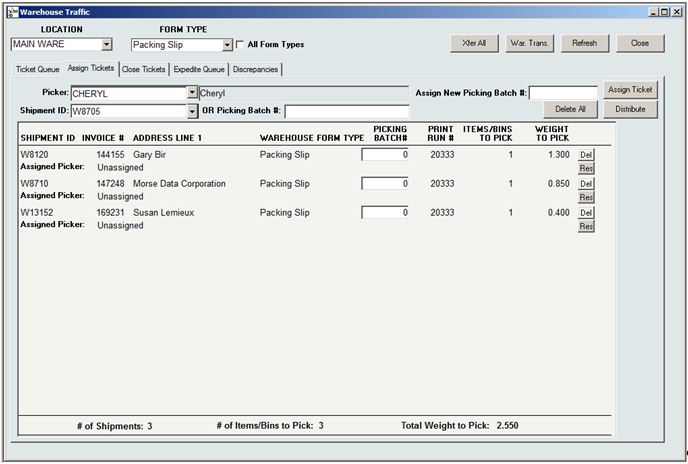 Tickets may also be assigned in bulk to several different pickers using the Distribute Tickets feature. This feature is useful for assigning putaway tasks, or for picking with a Crystal Report that prints shipment I.D. labels by picker after they are assigned.
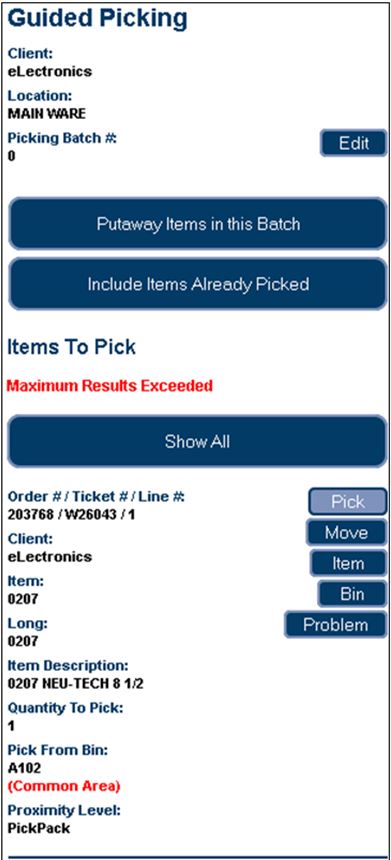
 When RF transactions have been assigned / distributed, the RF personnel picks the batch by first scanning the barcode label of the bin from which an item is being picked, then the barcode label and quantity of the item. (One or more of these scans may be bypassed using security privileges.) Items are then Putaway to the packing area, where they may pack verified, if applicable.
For example, when you are picking an inventory transfer (e.g., using cart picking), you walk through the warehouse picking all the items in your batch. When you are done, you tell the system by putting the items away (e.g., a ‘pack’ bin for cart or batch picking).
 Watch for future articles for more great RF features. But if you can’t wait, just call us and we’ll tell you all about it!
Generating Income with Loyalty Programs
Loyalty Programs continue our series on 5 ways to generate income with your ERP system. Loyalty programs give customers incentives / reasons to buy. They bring customers back so they buy more and buy again.
Loyalty programs provide benefits for both your business and your customers by generating additional income and expressing appreciation to your customers. You can reward your loyal customers by offering free or discounted items and other incentives. For example, offering points for placing orders or spending a minimum amount encourages order building while giving something in return. You can offer points for many more activities that build your business, including these:
- Each dollar spent
- Placing the first order or creating an account
- Buying a specific item
- Spending a minimum amount
- Ordering during a specific time
- Referring a specific number of friends to your website
- Joining a mailing list
- Ordering frequently
- Buying extra points
You can even offer points for sale. There are many, many possibilities. With InOrder, the loyalty earning level for an order can be changed while editing the order.
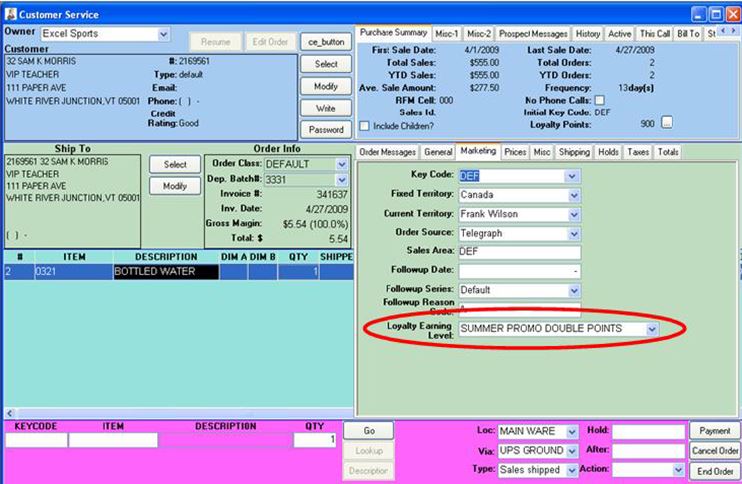
Points are earned and redeemed by placing an order. When a loyalty award is added to an order, the points are instantly deducted from the customer’s loyalty award account. You can give your customers choices, and redeem points in the form of free merchandise, dollar amounts, merchandise credit, and shipping discounts.
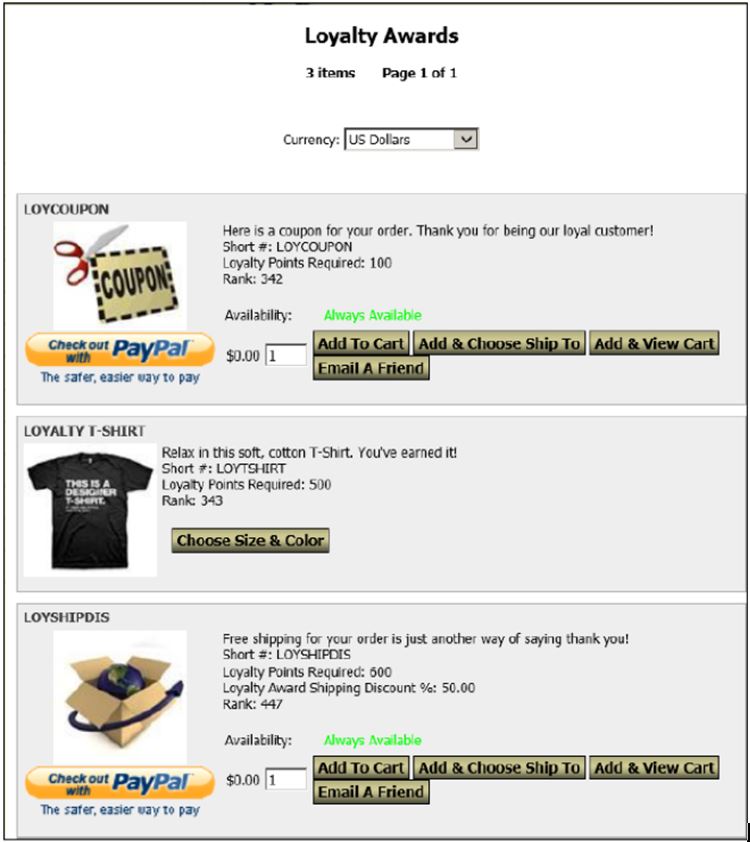
You set the limits. Points and awards may be handled a number of ways:
- Points can be awarded based on dollars or using resolutions based on quantity.
- Award points for the items of your choice.
- Assign earning levels based on customer types and order classes.
- Points may be manually overridden.
- Points are awarded when the order posts.
- Points may or may not expire.
- Identify the awards to offer.
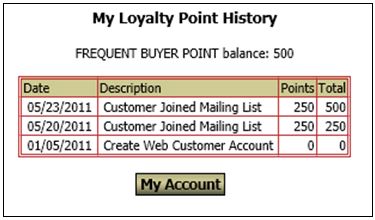
Track point balances and redemptions. Reports list each customer’s loyalty point balance and point redemptions for a date range by inventory item. Customer service reps can view earning details, balances, and access orders/transactions that generated or redeemed points. Customer may view their point balance and history on-line.