
InOrder ERP Quick Tip – Copy Details to Spreadsheet
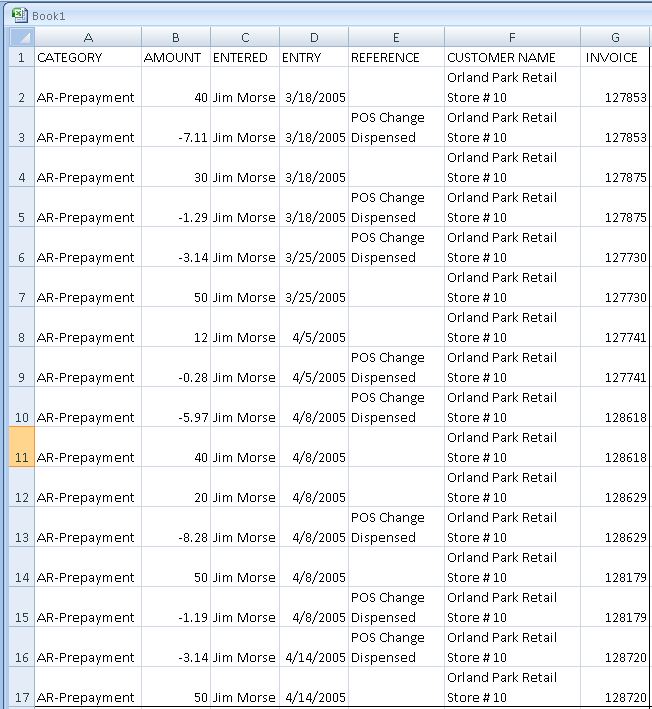
To allow users to quickly get deposit batch details to a spreadsheet, a copy/paste function is available on the Details tab of the [Deposit Batch] window. To copy the details, use the copy shortcut (CTRL+C) or click the Copy button on the InOrder toolbar.
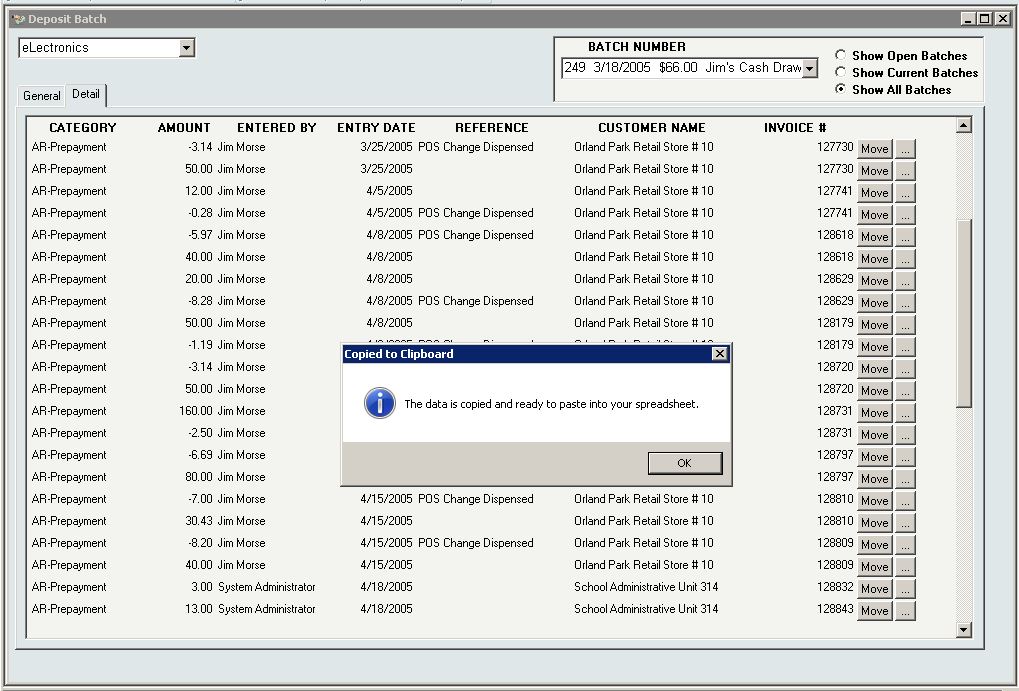 Then paste (CTRL+V) the details into the spreadsheet.


Extend Your Store Credit to Point of Sale with InOrder ERP
Have you ever seen an old western movie with a customer shopping in the town store, and the customer gets to the register and says “Put it on my account?” They didn’t use debit cards or credit cards, but they were probably customers with good credit and a store credit account.
If you extend credit to your customers, you can bring a piece of that old world charm to your store with InOrder’s Point of Sale module. Simply use the “Pay Later” option, and the receipt prints. For returns, this feature sends the balance to A/R as a credit.
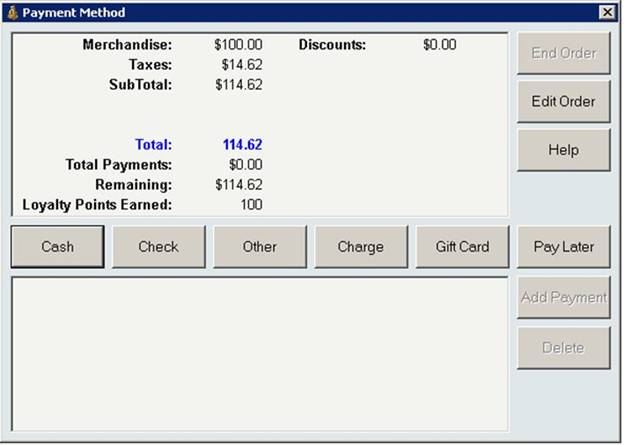 InOrder tracks the customer’s credit limit for you and only allows this for customers with good credit and enough unused amount on their credit limit to cover the order total. InOrder also makes sure your customer service rep has the appropriate privilege to access this feature. With this feature, you get old world charm and customer service with the latest ERP technology.
InOrder ERP Stock Drop Transfer Feature Allocates Stock From Nearby Locations
While you might expect ERP systems to backorder or cancel an out of stock item, InOrder can see stock available at a nearby location. If that stock can be brought to the warehouse in time to fill the line item, it is allocated to the order.
 To do this, InOrder generates an inventory transfer to transfer the stock from the remote location back to the warehouse from where the order shipment needs to ship. Personnel at the remote location print the “transfer out” order and pull the stock as soon as possible. The stock is transferred, and the transfer is posted.
Stock can be pulled from any designated facility that may have the stock on hand, such as a remote storage location, a point of sale store or merchandise exhibit, or even a consignment location. In some cases there is a risk that the stock is sold to a point of sale customer before it can be transferred. Therefore, InOrder keeps the order from printing in the ship-from warehouse until the transfer is posted to confirm the stock was retrieved.
InOrder ERP Recognizes the New DIM Factors
The major carriers have recently announced billing changes effective January 2015 that use new DIM factors and will increase shipping costs on most packages shipped.
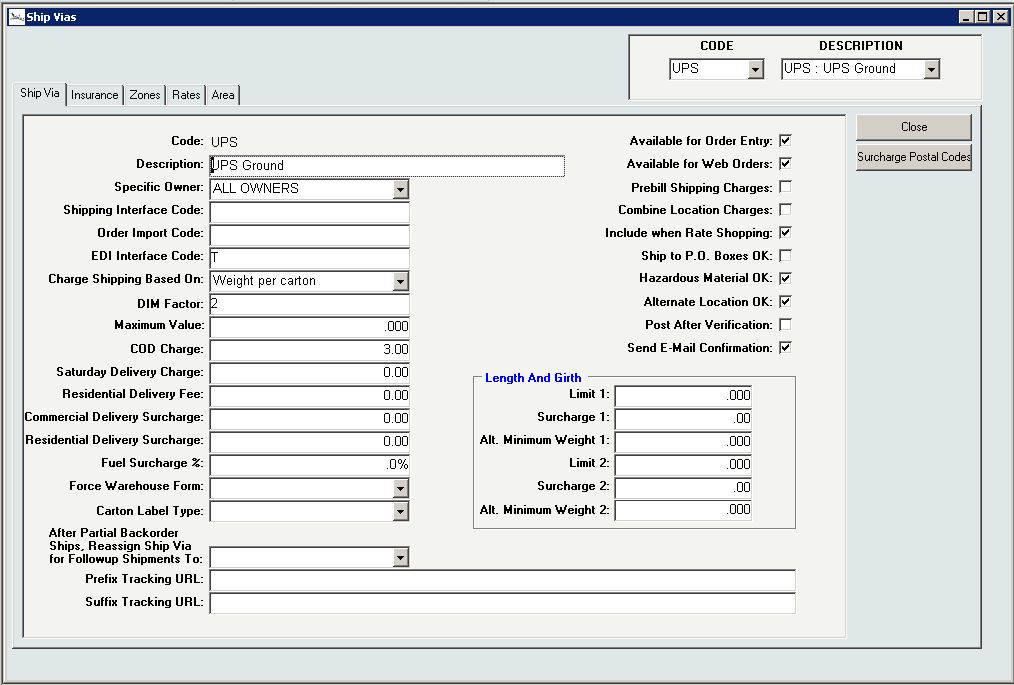
To help more effectively estimate shipping rates, a new “DIM Factor” field is available on ship vias that compute shipping based on Weight Per Carton. If this field is empty or set to 0, the old method of calculating shipping charges is used (simple calculation of merchandise weight + carton weight).
When this field has a value >0, InOrder uses the item dimensions (height, weight, length) to determine appropriate cartons. InOrder calculates the carton’s dimensional weight and compares it to the merchandise weight, and the shipping charges are computed based off the greater of the merchandise weight and the dim weight. Then the shipping charges for each carton in the shipment are summed to calculate the estimated shipping charges for the shipment.
InOrder ERP Quick Tip – Finding a Configuration Setting
One of the many great features about the InOrder ERP system is its versatility. For example, you can tell InOrder which default credit card to use when processing payments, or whether to pause before printing checks. You can even determine when to stop totaling orders for each added line item to improve response time of very large orders.
These functions can be controlled with simple configuration settings that are accessed through an easy to use window from the main menu.
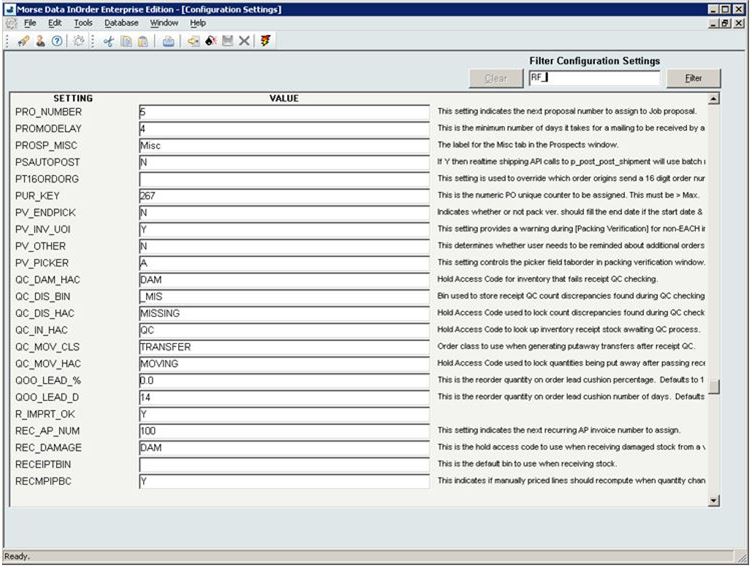
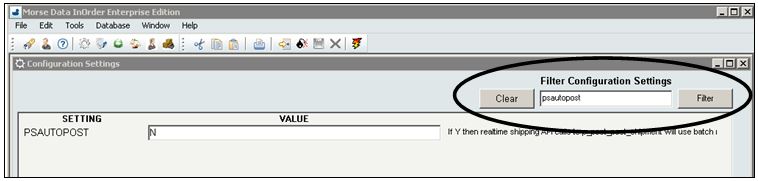
The InOrder ERP system can use hundreds of configuration settings, so the most efficient way to find your setting is to use the Configuration Setting Filter. Simply enter the setting you need to set, click the Filter button, and InOrder finds it for you.
If you’re looking for a configuration setting but you don’t know the exact setting, the Filter can help you find it. For example, if you need to set the default maximum number of batches per shipment that can be assigned to one warehouse picker, you can search for a key word. InOrder will display all the results it finds with that word in the setting or the description.
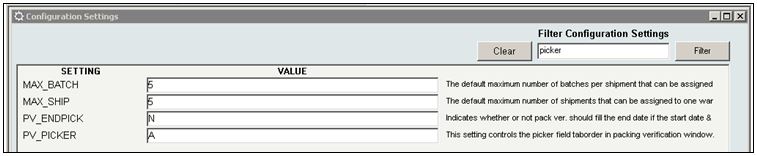
Simply click the Clear button to start a new search. This filter is also on the Security Class window to help you search on the Privileges tab.

InOrder Quick Tip – Updating an Applied Payment
Has this ever happened to you? You’re applying a payment to multiple invoices, and half-way through, it’s time to go home, or each lunch. Fortunately, InOrder lets you pick up where you left off.
When the entire payment amount is not applied before closing the Reapply A/R window, the balance of the payment is applied to Invoice #0 until the applied payment amount is updated. This feature is used to update the payment applied to Invoice #0.
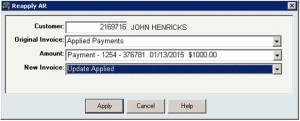
- From the Original Invoice drop-down list, select “Applied Payments.”
- From the Amount drop-down list, select the payment to update.
- From the New Invoice drop-down list, select Update Applied.
- Click the Apply button.
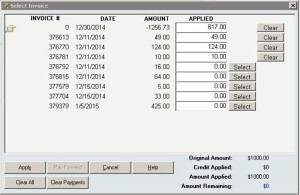
- On the Select Invoice window, the value in the Applied column for Invoice #0 represents the amount of the selected payment to be applied. Click the Clear button to remove the amount applied to Invoice #0. When the amount of the payment applied to Invoice #0 is cleared, it is reflected in the Amount Remaining field.
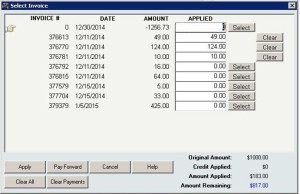
- Select each invoice to apply.
Protecting Against Theft with ERP Software
Employee theft goes well beyond loss of cash or product to get to your bottom line. It can affect your customers by way of higher prices and inferior shopping experiences, which can have a direct impact on your reputation. Imagine what your customer thinks of your business when he or she is promised an item by a specific date because you think you have it in stock. Although your (paper) records showed you had the item, it was ultimately backordered. Unfortunately, the item was stolen by an employee and you were not aware until the customer was already disappointed.
And speaking of your reputation, you don’t want to invite even more shoplifting because your business is known as an easy target.
Employee theft can also affect other employees. Stealing from you indirectly steals from them. How many times will it happen before other employees question whether you’re competent enough to keep the business strong and safe? After it happens, will you unfairly limit the freedoms of the rest of your staff?
Software Advice™, a consultancy that analyzes inventory management software, recently released the results of a study exploring how inventory management software can detect employee theft.
The survey questioned U.S. retail employees about store types, job titles, inventory management methods, theft perception, and outright stealing from their employers.
According to the report, the National Retail Federation (NRF) estimates that employee theft accounted for almost 44% of total losses for US retailers. Some of the data revealed from responses to the survey from Software Advice™ included the following:
- 85% of national retail chains, 53% of local and regional retail chains, and 37% of small stores surveyed use inventory management software.
- Only 28% of employees whose stores use inventory management software said internal theft is a problem, compared to 37% of employees whose stores use other methods for managing inventory.
- 22% of employees at stores without inventory management software openly admitted to stealing products, compared to 15% of employees whose stores use inventory management software.
As explained in the report, modern inventory management systems can be integrated with other software and hardware to detect suspicious patterns, providing data for management involvement.
 For example, when you use a quality ERP system, your inventory availability is tied directly to your order system. The InOrder ERP system includes audit logging, which provides dates, user names, and tasks each user performs. The inventory on hand is tracked for the duration of its time in the warehouse. Any inventory transactions including receipts, sales, returns, as well as all types of adjustments, such as kit assemblies, facility transfers, inter-facility bin moves and replenishments, cycle count adjustments, damaged write-offs, etc. are tracked to allow precise SKU audits. Additionally, full warehouse “snapshots” of quantity and value on hand are taken whenever an accounting period is closed, allowing reports to show beginning on hand, activity, and ending on hand for an accounting period. Inventory accuracy typically approaches 99.9%.
How else can InOrder help detect theft?
Because InOrder’s Purchasing, Payables, and Inventory systems are all connected, you can compare what was ordered to what was received, to what you are paying your vendors.
The system tracks all purchase orders placed with your vendors, and any subsequent changes to those orders. Inventory receipt transactions are linked to purchase orders, recording what happened to each carton entering the facility. Vendor bills are entered into the system before or after inventory receipt. These bills get linked to the receipt and the purchase order. Any inventory that is received damaged is tracked as it gets routed back to the vendor for credit, and the credits are tracked. These processes enable control over what you receive and approve for payment with your vendors, stopping vendor billing fraud in its tracks.
Then these processes directly feed G/L, thwarting the rogue accountant who tries to skim by charging higher expenses on the G/L than the expenses actually incurred on your vendor bills, and then pocketing the difference.
Finally, InOrder’s tracking auditing enables you to isolate and trace other types of employee theft, such as generation of bogus customer refunds, gift cards, or credit memos issued to friends of employees. Seeing who performed a transaction and when is helpful, but forensic analysis of suspicious transaction patterns in the database can also help to isolate the employee(s) involved.
With a good ERP system, employees discover that they can trust the system, and you in the process. With their trust comes respect and confidence that their jobs will be secure and the business will continue to grow. A good ERP system helps you improve your customers’ shopping experience, achieve their trust that you keep your word about your products, and you take their business seriously.
Take Control of your Organization’s Security with an Incident Response Plan
You’re PCI DSS compliant. Your ERP system is PA-DSS certified. You implemented appropriate security checks in your checkout process. So you have nothing to worry about when it comes to security, right? Maybe…
According to the 2014 Trustwave Global Security Report, 96% of the applications scanned by Trustwave had at least one serious security vulnerability. Further, when detecting a security breach, the Report also revealed that, although 71% of the victims did not detect the breach themselves, doing so would have shortened the containment time from two weeks to 1 day.
An Incident Response Plan may have helped those victims detect those breaches themselves. As explained in Trustwave’s report, an Incident Response Plan is necessary to detect and deter threats. It provides advice for an Incident Response Plan, as well as responses to indicators of compromise. The report outlines these five steps for an Incident Response Plan:
- Train your staff on the best security practices.
- Enforce passphrases or strong passwords (minimum of seven characters and combination of upper/lower case letters, symbols, and numbers). The report revealed that 31% of compromises were caused by weak passwords. Also use two-factor authentication when accessing the network.
- Secure your data. Test and scan to identify and fix flaws early.
- Use penetration testing on your system to identify vulnerabilities and understand how your data can be attacked.
- Plan your response to a breach and practice the Plan.
The Report also revealed that 85% of the exploits detected were of third-party plug-ins. It contains statistics about locations and targeted industries, vulnerable types of applications, top vulnerabilities and severities, methods of intrusion and delivery, regulations, and much more.
Trustwave’s 123-page report is impressive and eye-opening. Knowing your enemy and what they’re planning is critical for defending yourself appropriately. Read the report for a great introduction to understanding security threats, and advice for detecting and responding to them.
InOrder ERP Offers Sliding Royalty Scales to Adjust Rates Based on Sales
The InOrder ERP [Royalty Contract] window allows you to declare “contract clauses” that select line items that will earn royalties. For example, you can create a clause that pays 10% royalty on “Domestic sales with discount less than 40%” or “All Canada Sales.” InOrder also lets you group these clauses so you can simplify the clause selections. For example, you can have the following group of clauses “Discount greater than 40%,” “Domestic Sales,” and “Foreign Sales.” In this case, any sales with high discounts will pay royalty on the first clause in the group. Otherwise the sale will pay on one of the other two clauses. To illustrate the grouping feature, we can create another clause in a separate group, which earns 1% bonus royalty for any sales that occurred before a certain date. This royalty bonus could be computed on the same contract, next to the other calculation because it is in a separate group. Each clause can earn the author royalty based on a flat percentage / amount, or a sliding scale that adjusts the rate based on sales to date for this specific clause.
This function also allows sliding scales to adjust the rate based on sales to date across all clauses in the clause group, even if some of those clauses pay 0% royalty. This allows you to offer sliding scales that are based on all sales that meet selection criteria for any clause in that clause group, but only pay royalties on the sales selected by that clause itself.
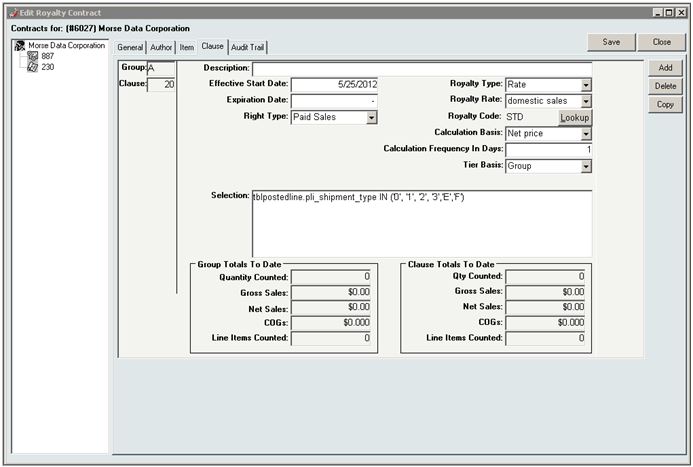
To use this feature, Set the Royalty Type to Rate and select the Tier Basis on the [Royalty Contract] Clause tab. The following selections are available:
- Clause – This selection calculates each clause independently.
- Group – This selection calculates all clauses in a clause group together, which means that sales for all classes in the clause group are used to jump to the next tier in the scale. For example, Group A contains two clauses, 10 and 20. Clause 10 pays x% up to 500 sold and y% over 500, but calculates only on sales in the US. Clause 20 pays X% up to 500 sold and Z% over 500, but calculates only on sales outside of the US. If 300 are sold in the US and 300 outside of the US, Clause 10 pays Y% and Clause 20 pays Z% because the total sold is over 500.
7 Tips for a Better Mobile Checkout Process
Until now, mobile shopping was limited by smaller and smaller screen sizes, but finally users are realizing that bigger screen sizes enable a better mobile buying platform. We believe that this will only increase customer demand where there are better Ecommerce applications.
I think this article by James Bickers is pretty accurate with the five mistakes retailers make with their mobile websites. Those mistakes include:
- Information – Requiring too much entry on the part of the customer increases errors and results in frustration during checkout.
- Lengthy – All the information requested takes too much time to check out, even without making mistakes.
- Intrusive – When a site requires shoppers to register for an account without a guest checkout option, many shoppers will not check out, resulting in abandoned carts.
- Experience – According to the article, 88% of mobile shoppers were not completely satisfied with the mobile shopping experience.
- Security – While shoppers are concerned about the security of their payment information, they also complain about excessive security checks.
So, what do you do to improve your mobile shopping cart? Here are my suggestions:
- Make the checkout process easy – I can make a lot of mistakes entering a lot of information on my phone. What will happen to my order if I fat-finger a key or don’t click something exactly the way the system expects? Will my neighbor get my order? Will I know if it was cancelled? These are real experiences. I just met a neighbor who was nice enough to drive a block away to deliver my package, and a co-worker recently had an order cancelled, but didn’t even know about it until she checked the status and it was too late to re-order in time for Christmas delivery.
- Show your shoppers the checkout flow and let them know what to expect. Try to keep the flow consistent with your online cart.
- Make the checkout process as efficient as possible with as few steps as possible. Keep it simple and quick. Keep page and image loading fast so customers won’t give up on you because it’s taking too long.
- Companies are responding to shoppers’ lack of tolerance when a mobile site requires registration, so your customers have other places to go. If you want registration, at least offer rewards for registering. Another suggestion to consider is that every customer is a guest with a fast and easy checkout, but placing an order creates an account that a customer may or may not choose to access online, now or in the future. If a customer does not “sign in” and just places an order, the system should be smart enough to identify the customer and link to his or her previous orders. However, the ability to see saved information or previous orders, or to place new orders using saved credit card tokens, should always require a secure form of returning user authentication. This does not have to be a password that the user will need to remember. It could be a simple step, such as sending a text or email to the customer’s phone.
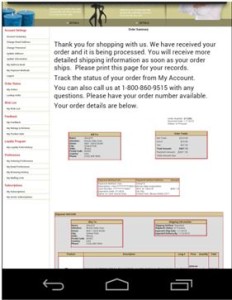
- Make sure your mobile shopping cart integrates in real-time with your ERP system so your shoppers don’t get disappointed by unexpected backorders.
- Provide a shipping estimate up front. It’s annoying to have to look for it on a computer, and forget it if I can’t find it while I’m fumbling with my phone.
- Security – Of course I’m concerned about security. I don’t give my credit cards or passwords to anyone, so I do my part. If you say your sight is secure, I’ll believe you – I have to if I’m shopping on my phone, right? So, if I trust my credit card information to you as an Ecommerce shopper, it’s your job to keep it safe. However, I still want you to balance security with a good shopping experience.
For more suggestions on providing a great shopping experience for your customers, or for a free demo, call us at 800-860-9515.